

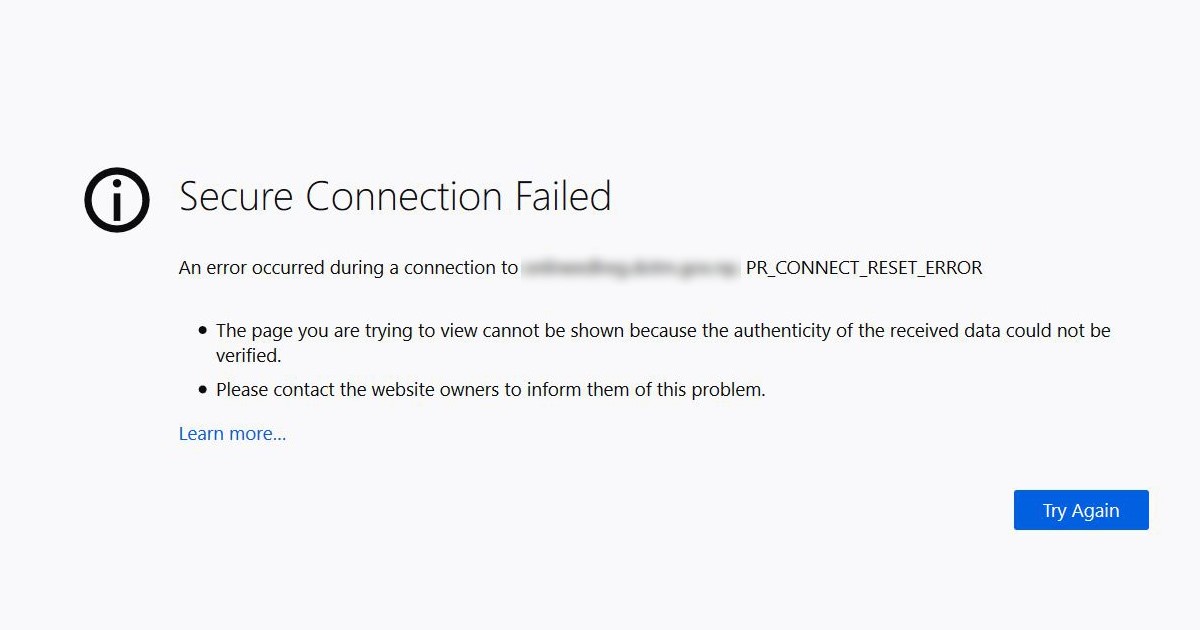
There are several possible methods you can try to fix the PR_CONNECT_RESET_ERROR on Firefox:
Restart your computer and try again: Sometimes this error can be caused by temporary issues with your computer or network, and restarting your device can help resolve the issue.
Check your internet connection: Make sure that your internet connection is stable and working properly. You can try resetting your router or modem, or contacting your internet service provider if you are experiencing issues with your connection.
Clear your cache and cookies: Clearing your cache and cookies can help resolve issues with the website or web page you are trying to access. To clear your cache and cookies in Firefox, go to the "Options" menu, select "Privacy & Security," and click the "Clear Data" button.
Reset your Firefox settings: Resetting your Firefox settings can help fix issues with the browser. To reset Firefox, go to the "Options" menu, select "Privacy & Security," and click the "Reset Firefox" button.
Check for and install any updates: Make sure that you are using the latest version of Firefox, as older versions may be prone to errors. You can check for updates by going to the "Help" menu and selecting "About Firefox."
Disable your antivirus software temporarily: In some cases, your antivirus software may be blocking access to certain websites or web pages, causing the PR_CONNECT_RESET_ERROR. You can try disabling your antivirus software temporarily to see if this resolves the issue.
If none of these methods help resolve the PR_CONNECT_RESET_ERROR, you may need to seek further assistance from a technical support specialist.

